Capture the whole page. Keep the context.
Save a long web page as one image instead of stitching screenshots by hand. SuperCapture’s browser extension scrolls the page and adds the result to your Mac’s library, ready for review and annotation.
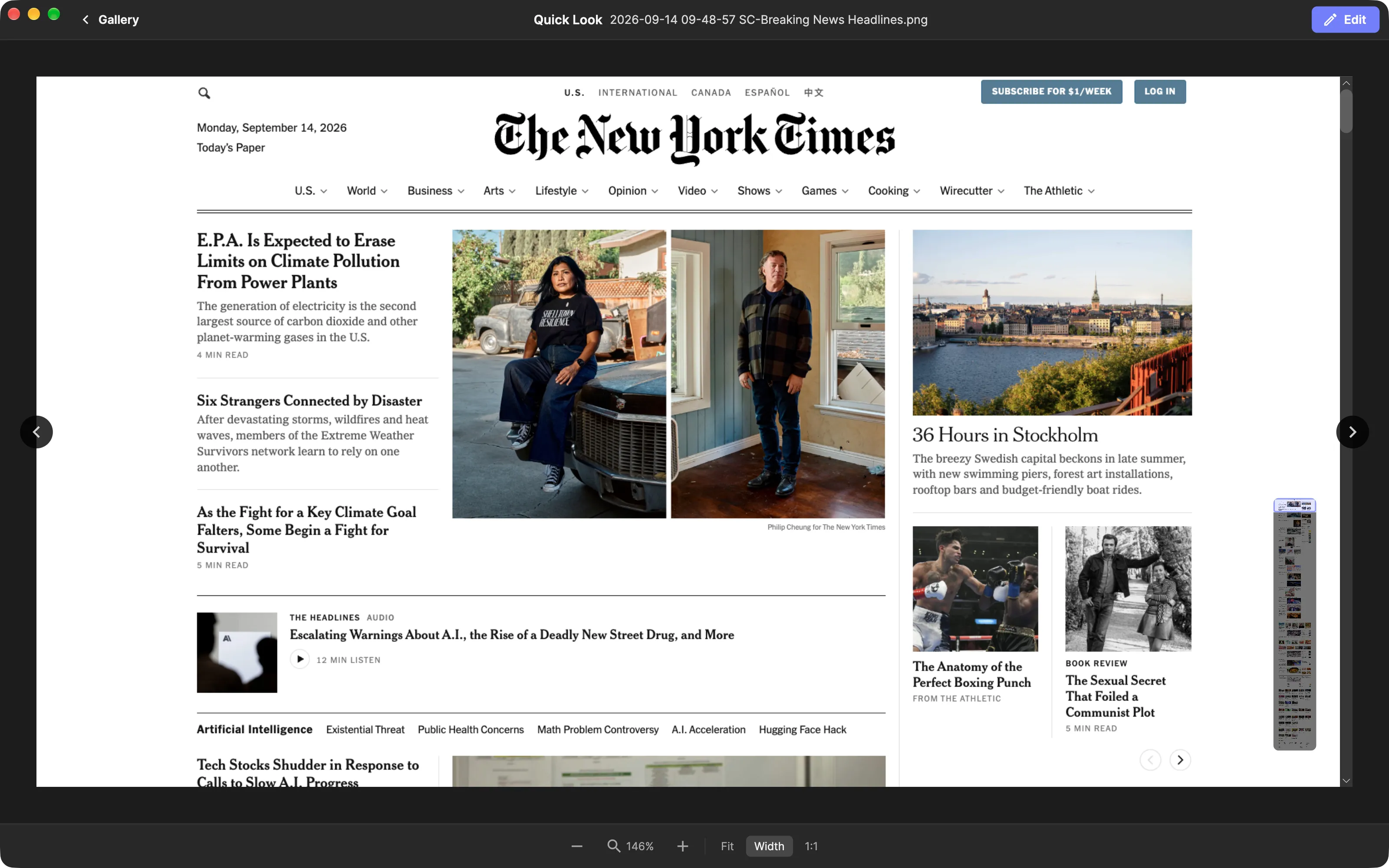
Take a scrolling screenshot on Mac
- Install SuperCapture and your browser extension. The Mac app is required. Safari support is included with the app; Chrome, Brave and Firefox use their respective extension listings. Get the extensions. Edge is not yet released.
- Open the page you want to capture. Sign in if the page requires it, dismiss anything covering the content, and let the page finish loading.
- Choose Full Page (Auto-Scroll) in the extension. SuperCapture moves through the page and stitches the captured sections into one image.
- Review the result in your gallery. Check that the sections you need are present before adding annotations or exporting the capture.
Your browser’s visible page is the source. A capture is a record of that page at that moment, rather than a live copy that updates when the website changes.
Give feedback with the full layout in view
A cropped screenshot can hide the reason something looks wrong. A full-page capture keeps the header, content and footer together, so a designer or marketer can see how one section relates to the rest.
Open the result in the image editor to add arrows, numbered steps or text. Keep the original context when explaining a spacing issue, a broken component or a suggested change. Export an image for your usual collaboration tools, or use the app’s sharing options.
Save a reference you can find later
Capture a product page, article or design reference before it changes. SuperCapture keeps the result in the same library as your other images. Its local OCR can make readable words inside the capture searchable, so a phrase or product name becomes another way back to it.
See how screenshot search works. A collection gives related references a home even when they come from different websites.
Check pages with dynamic content
Some pages keep loading new sections as you scroll, contain independently scrolling panels, or place sticky elements over content. Review these captures carefully. Wait for images to load and use an area capture when you only need a specific panel. Do not assume an infinite feed has a fixed end to capture.
A presentation is a different task: use Capture Slides for a supported web-based deck instead of treating each slide as part of a long page. Watch the extension demos to see scrolling and slide capture separately.
Requirements and privacy
The current Mac download requires macOS 15 or later and Apple Silicon. The extension works with the desktop app; it is not a separate cloud screenshot service. Local captures stay on your Mac unless you choose to share them or turn on cloud sync.
Follow the installation guide and compare free and paid plans.