Find the screenshot you remember.
A receipt, an error message, a detail from a design review. Search for the words inside a saved capture instead of guessing its filename. SuperCapture keeps recognition and search on your Mac.
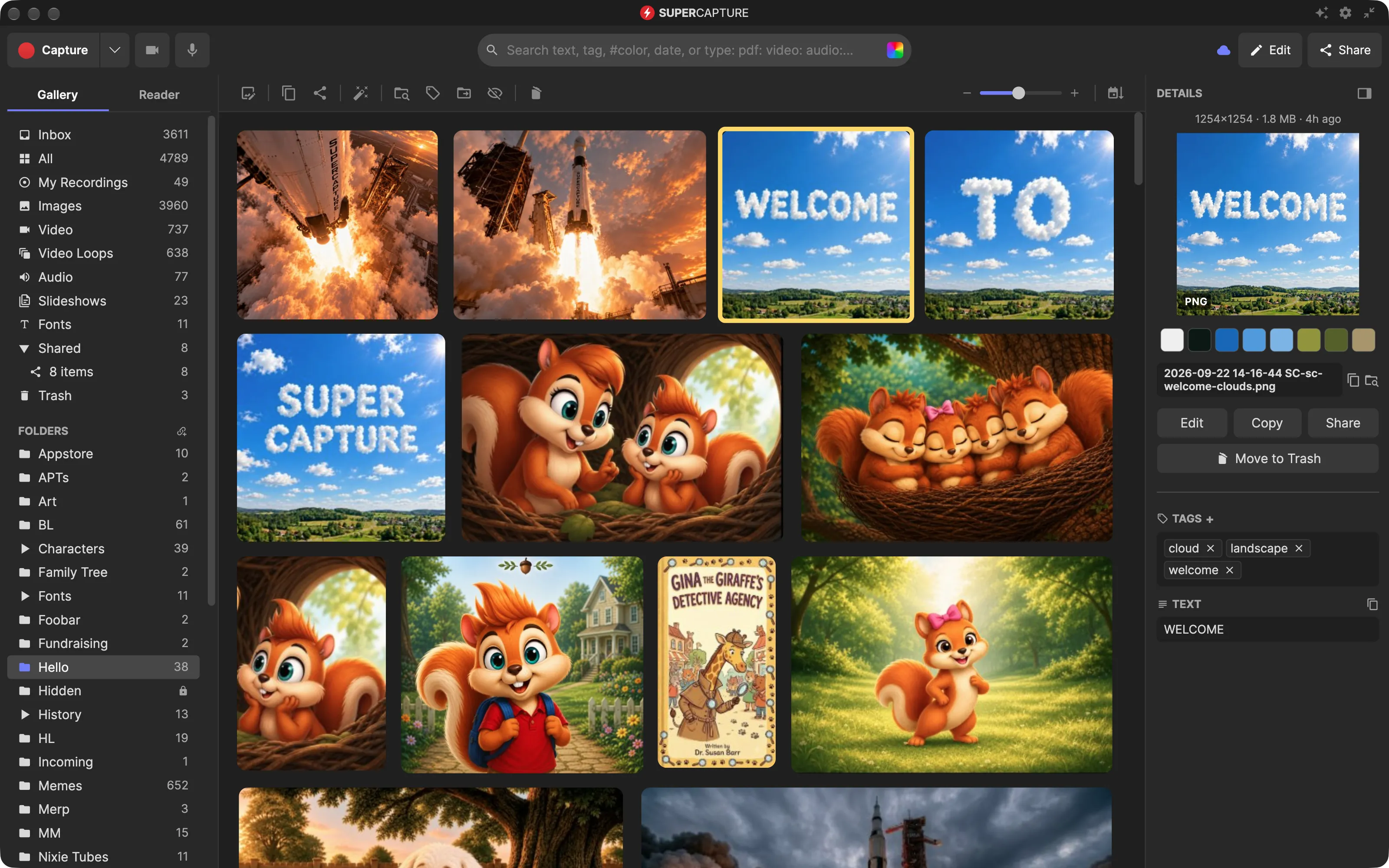
Search the contents, not just the filename
Optical character recognition (OCR) turns visible text in a screenshot into searchable text. That lets you find a capture using an error code, a company name or a phrase from the image, even when its filename tells you nothing about it.
SuperCapture processes captures in your local library. You do not need a cloud account to capture, organize or search on your Mac. Cloud sync is a separate, optional service.
Find an old capture in three steps
- Capture or import an image. Keep the relevant words readable. A screenshot of a receipt, document or application message gives OCR text to work with.
- Let the library process it. Recognition runs as captures are processed. A newly added image may not appear in a text search immediately, especially while a large import is being processed.
- Search for a distinctive word or phrase. Use the gallery search bar, open the matching image, then annotate, export or reuse it.
For example, if you saved a screenshot of a failed payment, try the visible error code or merchant name. You do not have to rename the image first. This is an example workflow; recognition depends on the actual image.
More ways to narrow your search
Text is one clue. Collections group related captures, while tags help when you remember the topic rather than the words. Color search is useful for visual work: type a hex value or a color name after #, such as #F87171 or #darkblue.
Use collections for material you return to often, such as reference designs, product feedback or receipts. That gives you a second way to find an item if its text is hard to recognize.
When text recognition needs help
OCR is not a guarantee that every word will be recognized. Small type, low contrast, stylized lettering and blurred images can make recognition less reliable. Capture text at a readable size and try a shorter, distinctive search term if a phrase returns no match.
The searchable library contains the material you have captured or imported. It does not search every image on your computer automatically. Capture a full web page when the words you need extend below the visible browser window.
Keep the library local, or choose to sync
Local capture and search work offline. If you enable SuperCapture Cloud, the content you select for sync and its supporting metadata are sent to the service. Read the security overview for the distinction between local use, standard sync and optional encryption on Pro and Enterprise.
Install SuperCapture for Mac to start a searchable library, or compare plans for cloud storage and sharing.